
Windows Mail App
Platform:
• Operating System – Windows 10
• Application - Mail
To add your new email account to the Windows Mail App:
1. Click on Windows Start menu or Search tool.

2. Type “mail” and then click the Mail App.

3. Select “Add Account” to get started.

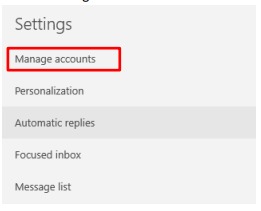
4. If you already have a different account setup with Windows Mail, select “Settings” at the bottom of the navigation pane. If not, skip to Step 5.

Select “Manage accounts.”
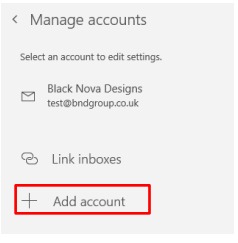
Select “Add account.”
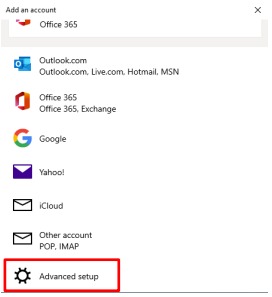
5. Scroll down to the bottom of the page and select “Advanced setup.”
6. Select “Internet email” on the next page.

7. Enter the appropriate details in corresponding fields of the setup window as below

After you have entered the required details, click “Sign-in.”
8. You have now completed email account setup for Windows Mail.

Useful Tips
To access your emails online, go to: www./webmail When prompted enter your email address and password.
Contact Us
If you have any problems with setup, please do not hesitate to contact us:
• Call Us - 01793 210045
• Email Us – support@blacknovadesigns.co.uk
• Visit our YouTube Channel - Tutorials - YouTube


