
Log into wordpress
Create a new page: Pages>Add New

The page should then look like this:
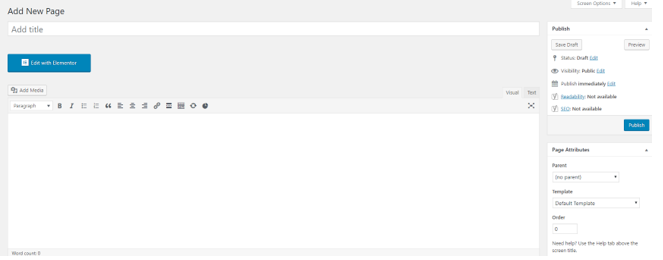
Now enter the name for your page by entering text into the Add Title box

For example:
I have named my page “Links”

Now save you page by going to the right sidebar>Publish>Save Draft

Now activate Elementor by selecting the Edit with Elementor button

Your page should now look something like this:

To add a button, go the Elementor Sideboard>Basic>Button

Drag the Button element on the page. Your page should now look like this:

Select the button and go to the sidebar>Button to edit it:

Enter the text you want to be displayed on your button in the Text box

For example:
I have entered “Facebook”

Now add a URL for your button in the Link box

For example:
I have put in a link for Facebook

To change the alignment of the button, go to the Alignment boxes

For example:
I have chosen to centre my button

To change the size of the button, go to the Size box

For example:
I have chosen to have a medium sized button

Now go to the Style tab

To change the colour of the text, go to Text Colour box

For example:
I have changed my text colour to white

To change the colour of the button, go to Background Color box

For example:
I have changed my background colour to blue

If you want to create more buttons/links, repeat steps 8-17
Then update your page or publish it


